Your Keep Home page helps you quickly understand what you owe, how much credit you have available, and what payments are coming up next. This guide explains what each section means and how to interpret the information you see.
In This Article
- Credit Summary
- Upcoming Payments
- Troubleshooting And Common Issues
- Frequently Asked Questions
Before You Get Started
Log in to your Keep dashboard and go to Home.
On this page, you’ll see two main sections that give you better visibility across your Keep products and important payment dates.
If you have AutoPay enabled, you may also see upcoming scheduled payments. To learn more, read How AutoPay works on your Keep card. If you don’t have AutoPay enabled, parts of this Home experience may look different for your account
Credit Summary
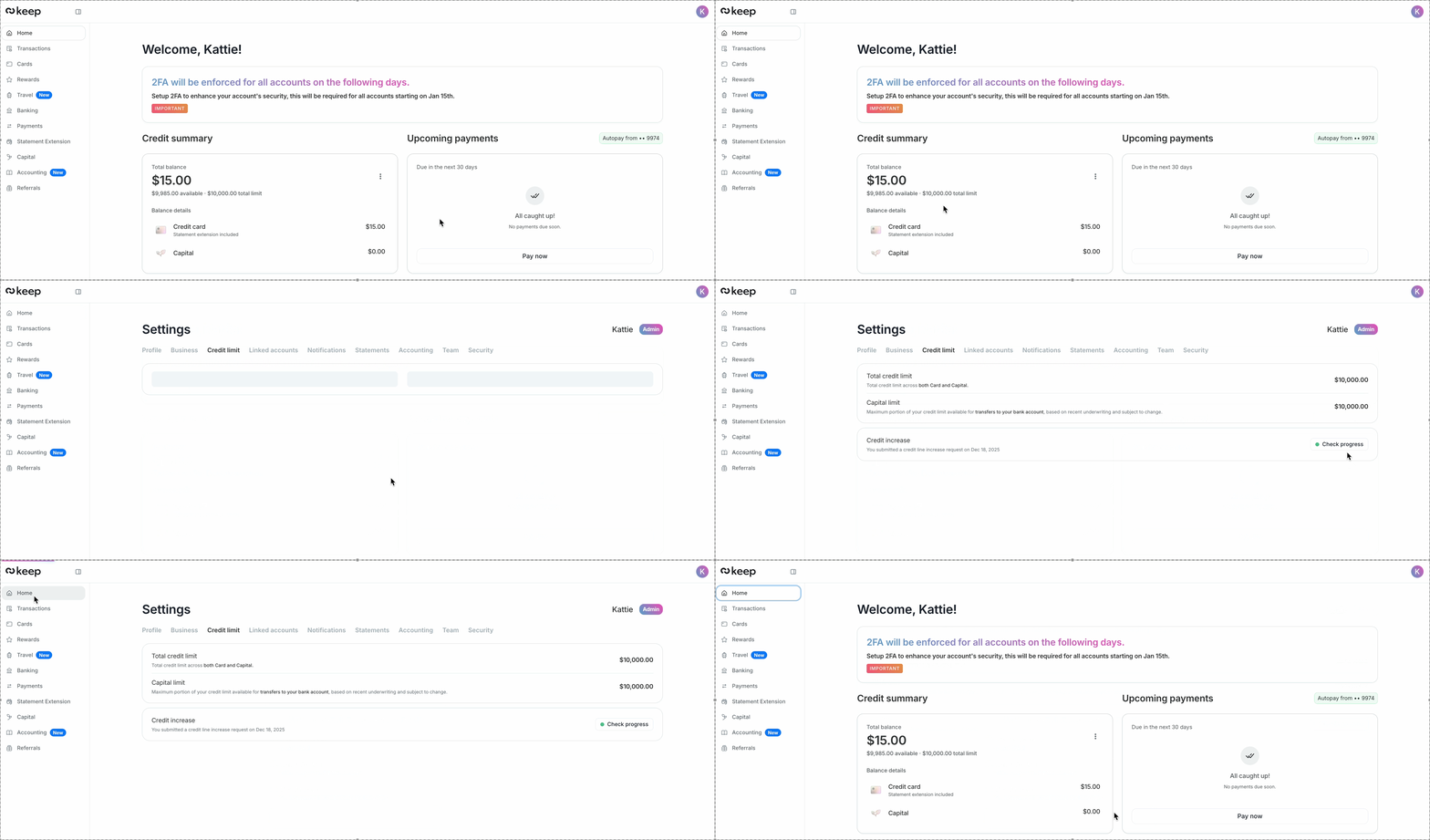
The Credit summary section shows a high-level view of your account balances and credit. Here’s what each item means:
- Total balance: The total amount currently owed across your Keep account.
- Available: How much credit you can still use right now. It updates as transactions post and as payments are processed.
- Total limit: Your total credit limit across Cards and Capital.
- Balance details: A breakdown of what makes up your total balance.
In Balance details, you may see items like:
- Credit card
- Capital
- What “Statement extension included” means: If you see “Statement extension included” under Credit card, it means any statement extension amount you have is already included in the Credit card balance shown in this summary. You don’t need to look for a separate “statement extension” line inside the Credit summary breakdown.
To Manage your credit limit Select the three-dot menu in the top-right corner of the Credit summary card, then select Manage credit limit. From there, you can review your limits and request a credit limit increase. To learn more, read How to request a credit limit increase.
Upcoming Payments
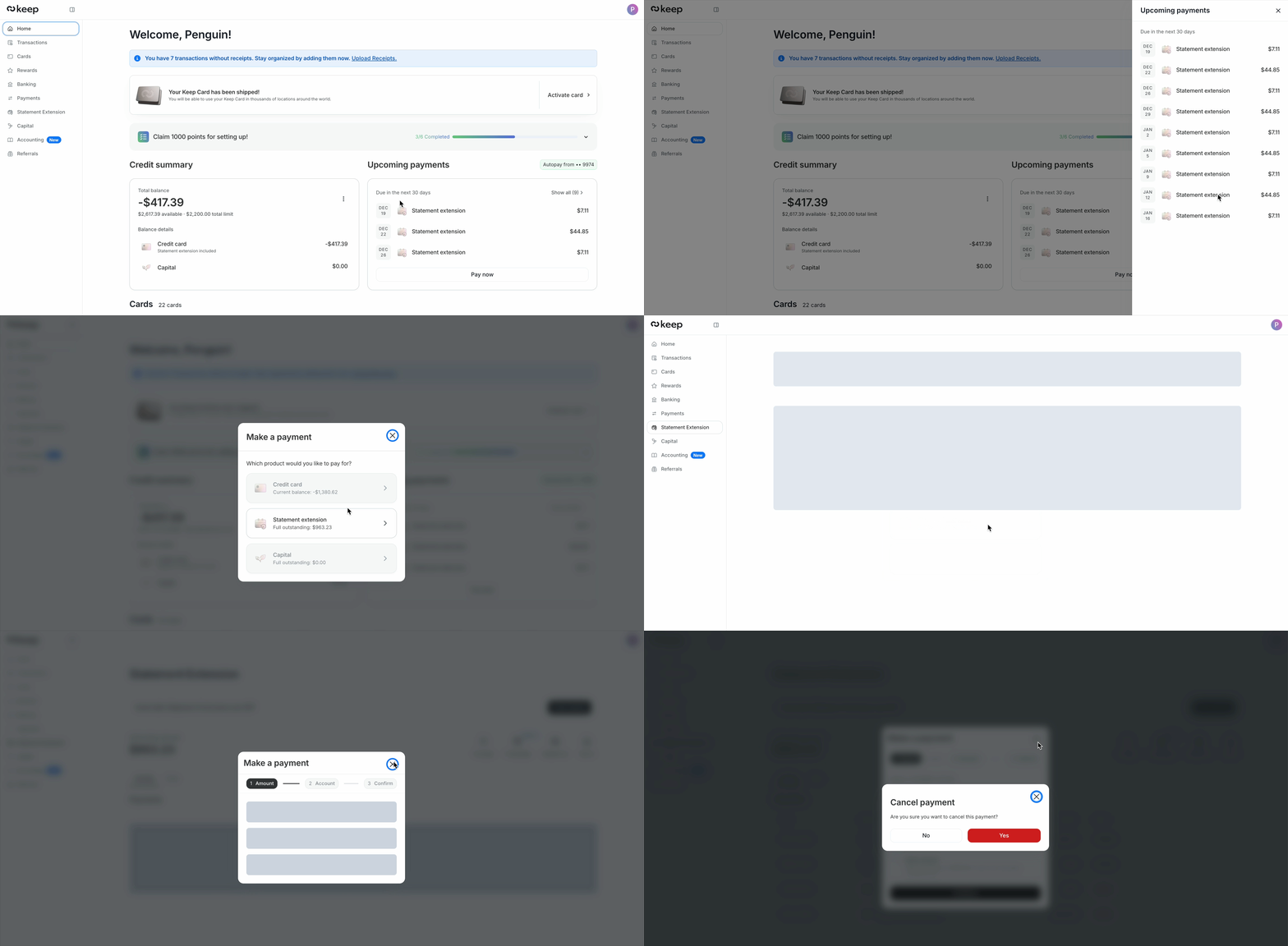
The Upcoming payments section shows payments that are scheduled to be debited soon.
Autopay from: This shows which linked bank account upcoming payments will be debited from (shown by the last 4 digits).
Due in the next 30 days
This list shows upcoming scheduled payments, including:
- the date
- what the payment is for (for example, Capital)
- the amount
If you select a payment category (for example, Credit card, Statement extension, or Capital), you’ll be redirected to the matching page to review that balance and payment details. If you select:
- Show all: This opens the full list of scheduled payments.
- Pay now: This lets you make a payment right away instead of waiting for the scheduled payment date.
Troubleshooting And Common Issues
I don’t see “Capital.”
Capital only appears if it applies to your account.
I don’t see “Statement extension” anywhere on Home.
That’s expected. If your Home page shows “Statement extension included” under Credit card, the statement extension amount is included in the credit card balance summary instead of being shown as a separate line inside Balance details.
Frequently Asked Questions
Why does Credit card say “Statement extension included”?
Because your statement extension amount is already included in the credit card balance shown in Credit summary.
Does paying down my balance increase my available credit?
Yes. As your payment is processed, your available credit will update.
Can I request a credit limit increase?
Yes. You can do so from Settings under the Credit limit tab, from there you can request and check the live status of your request.
How can I see my capital limit?
If your account has a capital limit, you can view it in Settings under the Credit limit tab. You’ll be able to see how your credit limit is assigned across cards and capital. Depending on your account setup, your capital limit may be lower than your cards limit, or they may be the same.
Need more help?
If you have questions about the balances shown on your Home page, contact our support team at support@trykeep.com.