
What transaction types sync to QuickBooks?
The bank feed mirrors exactly what you see on your Keep card statement and transactions page. The following appear in your QuickBooks Bank Transactions tab:
- Purchases including refund reversals and chargeback reversals
- Refunds and chargebacks as credits
- Card payments as credits, including statement repayments that pay down your card balance
- Fees charged on Keep Account, if any
- Adjustments as debits or credits depending on direction
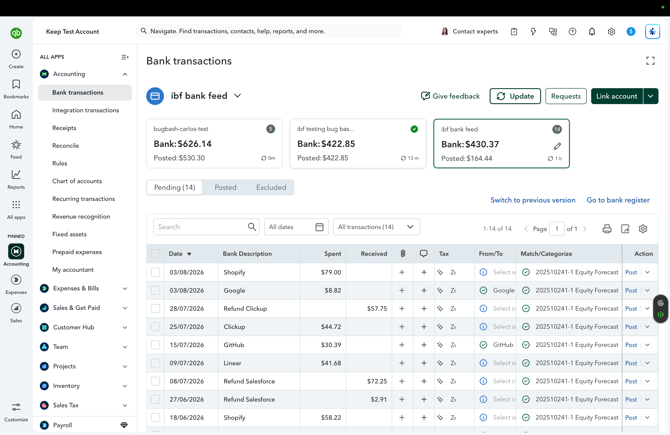
What details does each transaction include?
Bank feed transactions arrive with:
- Transaction amount
- Settlement date
- Merchant name
Bank feed transactions do not include receipts, categories, memos, or cardholder names. Coding and categorization happen in QuickBooks, where your existing rules apply. Keep transactions the same way they do for your other bank accounts.
Frequently asked questions
-
Do I see the statement payments in the bank feed?
When you pay your Keep statement from a bank account linked to QuickBooks, QuickBooks automatically pairs the payment on both sides. This is the standard behavior for any credit card linked to QuickBooks. Your accountant only needs to review and confirm the pairing.
-
A transaction is missing from QuickBooks. Where is it?
Bank feed only sends transactions after they settle, and QuickBooks picks them up in its next nightly refresh. A recent purchase may still be pending on your Keep card and will appear once it settles. If a settled transaction hasn't shown up after 24 hours, open Bank transactions in QuickBooks and click Update to pull the latest activity.
-
A transaction was refunded after it synced. How does that appear?
The original purchase and the refund arrive as two separate lines in QuickBooks, a debit and a credit. The bank feed does not merge them or remove the original. Match or categorise both in QuickBooks the same way you would for any other card account.