
Keep makes it simple to pay your outstanding credit card balance directly from your dashboard. Whether you want to pay automatically on your due date or make an early payment to free up your credit limit, this guide walks you through your options.
This guide explains the different ways you can pay your Keep card balance:
- Automatic Payments
- Making Upfront Payments
In This Article
-
Understanding Your Balances
-
Automatic Payments
-
Making an Early or Manual Payment
-
Important Payment Information
-
Frequently Asked Questions
Before You Get Started
Keep does not accept Bill Pay payments from your bank. These payments may be lost or take months to recover. Always pay your Keep Card directly through your dashboard.
Understanding Your Balances
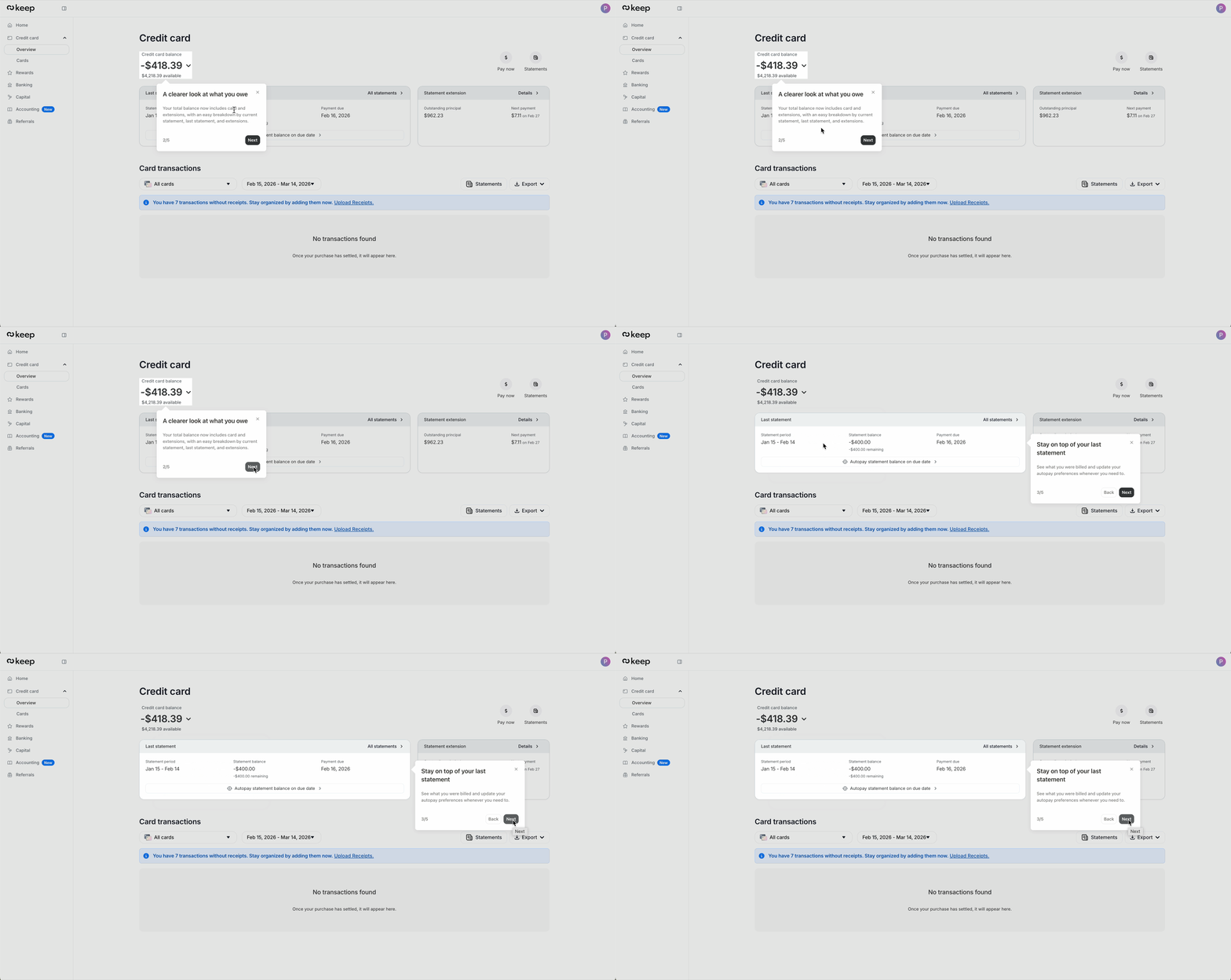
On the Credit Card → Overview page, you’ll see your balance details. There are two important balances to understand:
Current Card Balance
The total amount you owe right now.
-
Includes your last statement plus any new purchases, payments, or credits
-
Updates in real time whenever you use or pay your card
Statement Balance
The amount from your most recent billing cycle.
-
Stays the same once your statement is issued
-
Must be paid by your due date to remain in good standing
Understanding the difference helps you decide whether to wait for autopay or make an early payment.
Automatic Payments
We automatically charge your primary linked bank account on your due date each month.
Here’s how it works:
-
You’ll receive an email reminder before your due date
-
On the due date, we debit your primary linked account
-
No action is needed unless you want to change your payment account
If you have multiple linked bank accounts, you can update your primary account before your due date.
Making an Early or Manual Payment
If you’d like to pay your balance before the due date to free up available credit, you can make a payment at any time using Pay Now.
The Pay Now option is available from:
• Home
• Credit Card → Overview
How to Make a Payment
-
Go to Credit Card → Overview (or click Pay Now from Home or Capital).
-
Click Pay Now.
-
In the payment window, select Credit Card as the product you want to pay.
-
Choose the amount:
• Minimum payment
• Statement balance
• Custom amount
-
Select the bank account you’d like us to debit (if you have multiple linked accounts).
-
Review and confirm your payment.
Once confirmed, your payment will begin processing.
Payment Processing Time
Whether your payment is collected automatically or submitted manually, it will take up to 3 business days to reflect on your balance.
Weekends and public holidays are not included in this timeframe.
During this time, your available credit may not immediately update.
Important Payment Information
• You can only make payments toward your outstanding Keep Card balance.
• Keep does not allow payments through third-party bank Bill Pay services.
• All payments must be made directly through the Keep platform.
If you need to make early repayments for other products (such as Capital or Statement Extensions), those can be managed from the payment window, make sure to select the correct product or go to their respective sections.
Frequently Asked Questions
1. Can I pay more than my statement balance?
You can pay up to your outstanding balance. Payments cannot exceed the total amount currently owed.
2. Where do I find Pay Now?
You can access Pay Now from:
• Home
• Credit Card → Overview
• Capital
3. Will my credit limit update immediately?
No. Payments take up to 3 business days to reflect on your balance and available credit.
Need More Help?
If you have questions about your payment or need assistance, contact us at support@trykeep.com.
We’re happy to help.